 Royal Kingdom
Casual
Download game
Disney Coloring World
4.2
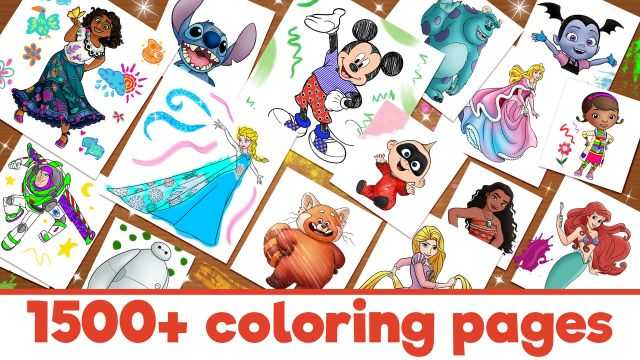
In Disney Coloring World, kids can get creative with their favorite Disney and Pixar characters, with hundreds of characters to choose from!
广告位,生产环境整体替换此div
Advertisement
Description
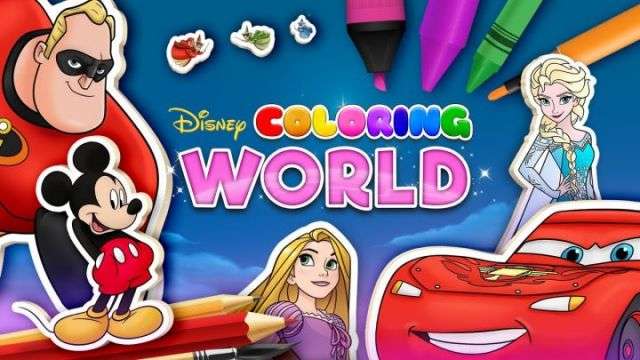
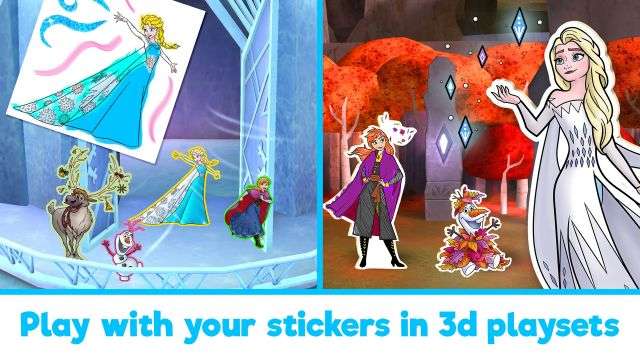
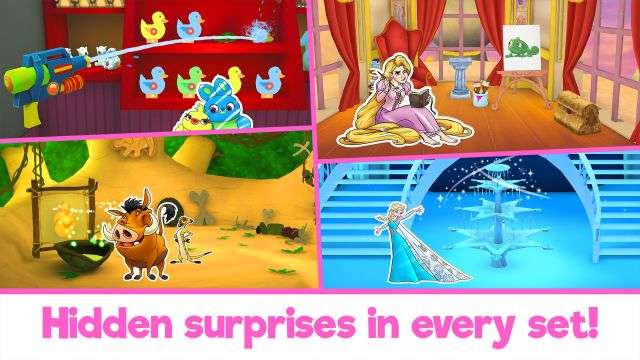
Enter the magical Disney Coloring World so you can color and play your favorite Disney characters. The welcome screen is a coloring studio, with the easel on the left and the chest on the right. On the left is the shopping cart for buying special items and characters. On the right is the setting page for the parents.
In settings, you can reset all the playsets and restore purchases if you had to reinstall Disney Coloring World. You can also choose your languages and scan pages from coloring pages to turn them into stickers for your world.
There is no currency in the game, but you have to purchase items and unlock coloring pages using real money. You can purchase items like brushes, playsets and coloring packs individually, or buy a bundle which features both. You can unlock everything by subscribing monthly or yearly.

Color
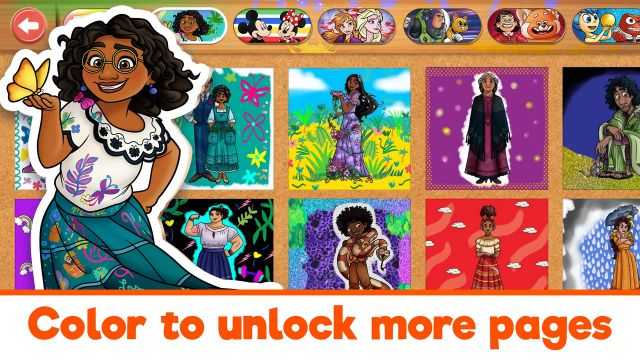
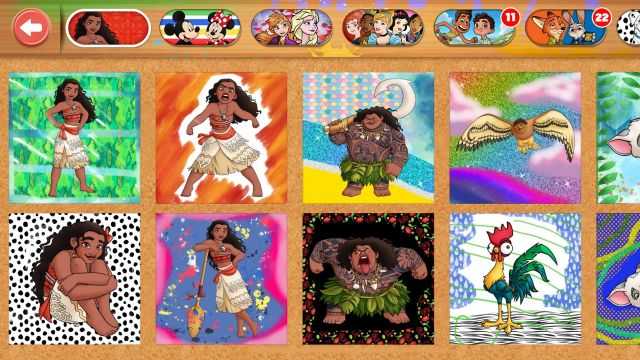
Before exploring the Play section of the game, visit the Color section so you can color in characters. On the top of the screen, you have characters from various Disney stories. The number is the number of characters available for coloring in. Each set has around a dozen pages, but only a few are free.
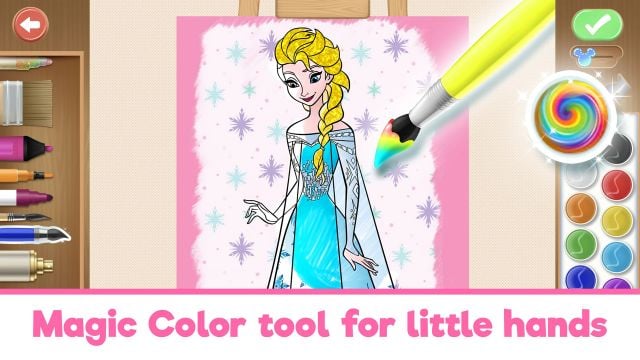
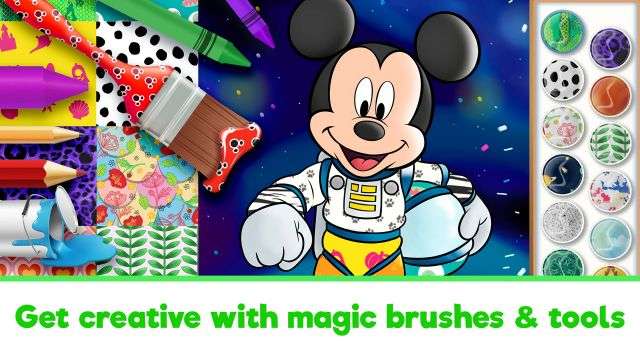
At the coloring page, you can enlarge your picture to make coloring easier using two fingers. Pinch your fingers together on the screen to shrink the picture back to size. On the left are the mediums: chalks, graphite, color pencils and more. The ones with the Mickey Mouse lock require payment to unlock. On the right are the color palettes. Tap the green tip on the top when you are done to finish coloring. The arrows are undo and redo, if you made a mistake you can undo quickly and not need to erase. The Mickey mouse toggle between the green tick and undo buttons is the line option.

When Mickey is on the left side and is blue, you can go over the lines. Which means when you use a paint brush, you can end up coloring outside the lines. Switching to the purple on the right will let the paint stay within the lines, so you can have a cleaner looking picture.
广告位,生产环境整体替换此div
Advertisement
Game Info
- Developer
- StoryToys Entertainment Limited
- Category
- Casual
- Platforms
- Ios, Android
- Updates
- August 17, 2021
广告位,生产环境整体替换此div
Advertisement
Screenshots
Tap to preview